How to Join My Livestreams as a Guest
A short guide for guests joining one of my livestreams: when to join, how to frame your camera, prepare your audio, and set your screen-sharing resolution.
Contents
Table of contents
Before the livestream
Please join around 15 minutes before the livestream starts. We will use that time to quickly test the cameras and set audio levels.
Please use headphones during the livestream. This prevents the stream audio from feeding back into your microphone.
Joining the call
You will receive two links: one for your camera and microphone, and one for screen sharing. You do not need to install any additional tools. Open both links in your browser.
Use the camera-and-microphone link for all audio. Select your microphone there.
The screen-sharing link does not use your microphone or speakers.
Google Chrome is preferred. If that is not available, use another Chromium-based browser. Firefox is the last option and may not work as well.
Screen-sharing resolution
IMPORTANT RESOLUTION INFO
- Please set your screen resolution to 1280 x 720 before the livestream starts.
- If, and only if, 1280 x 720 is unsafe or unavailable, use 1920 x 1080.
- Otherwise, your screen-sharing demo will be in vain: people will not be able to see it, even if you increase the font size.
Camera framing
Center yourself in the camera frame, with the top of your head close to the top of the image. Use the reference image below as a guide.
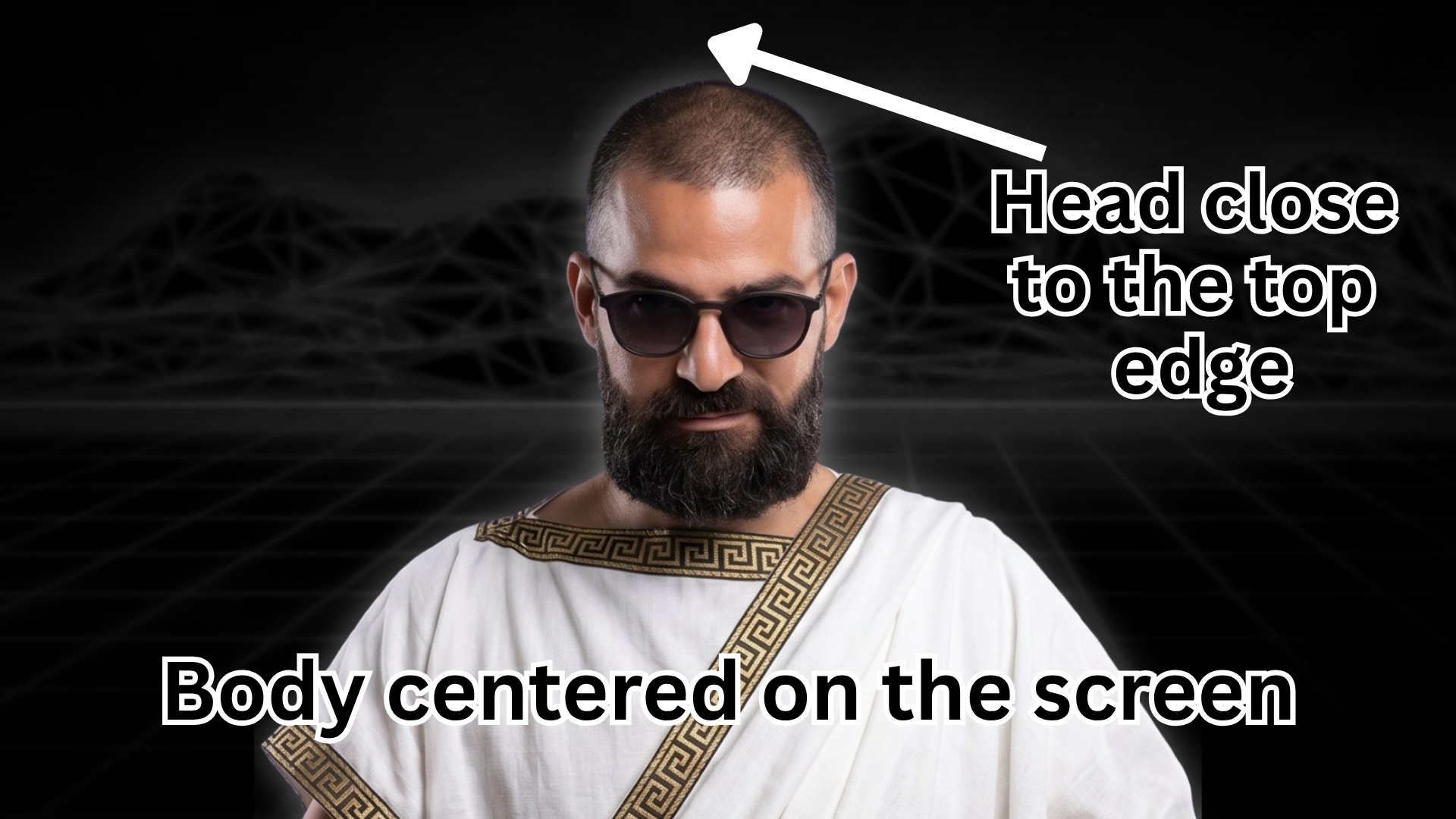
If you use a Mac and an iPhone, you can use Apple’s Continuity Camera. Your iPhone can be recognized automatically as a camera by your Mac.
Audio
An external studio microphone is preferred, but it is not required. Use any microphone you have available.
Laptop microphones are fine if you don’t have a dedicated mic. But audio quality will not be as good.